Once shipment execution is completed, the carrier sends a freight charge invoice for settlement. OTM can validate the invoice cost against the planned shipment cost, approve it, and then allocate that cost back to the originating Order Releases or Purchase Orders.
The three steps are: Match → Approve → Allocate.
Invoice Matching:
A Match Rule identifies which shipment corresponds to an incoming carrier invoice, by comparing reference numbers and the Service Provider. In this scenario the invoice carries the Shipment ID (SID) as a reference number, which is matched to the same reference on the shipment record.
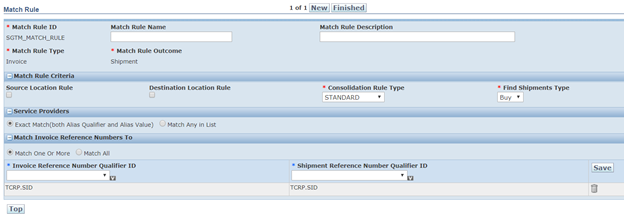
Once the Match Rule is defined, trigger the matching process on the invoice:
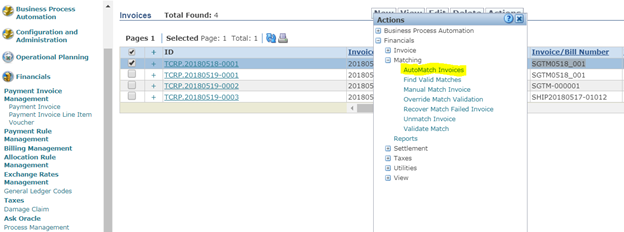
After matching, the link between invoice and shipment is recorded in the INVOICE_SHIPMENT table. You can verify this with:
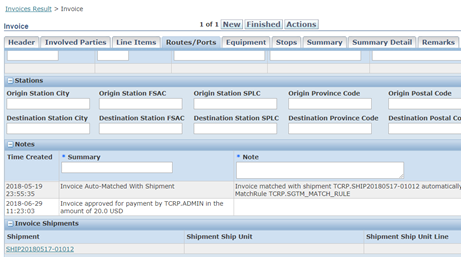
SELECT * FROM INVOICE_SHIPMENT WHERE INVOICE_GID = 'TCRP.20180518-0001'The Invoice Routes/Ports tab also shows matching and approval notes alongside the matched shipment details:
Invoice Approval:
OTM determines which approval rule to apply based on the rule attached to the approving user’s profile. Create an Invoice Approval Rule that covers the expected invoice range:
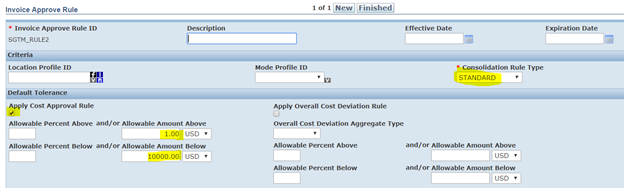
This rule approves all invoices between $1 and $1,000. Next, attach this rule to an Approval Rule Profile:
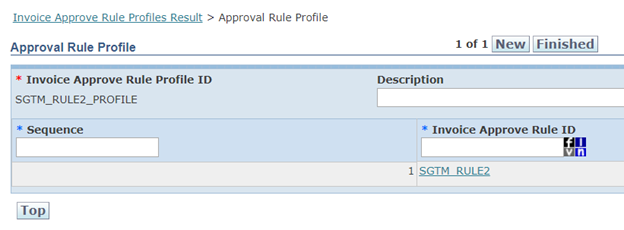
Then attach the profile to the user record so OTM knows which rule to apply when that user approves invoices:
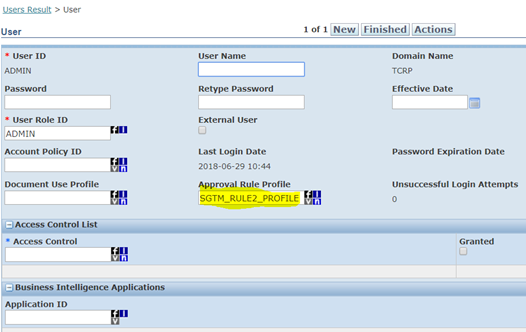
With the rule and profile in place, approve the invoice from the invoice record:
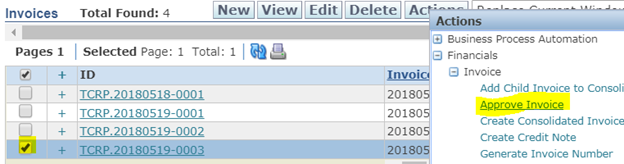
The invoice status changes to Approved, and the freight cost is now ready to be allocated back to the originating Order Releases and Purchase Orders in the next step.