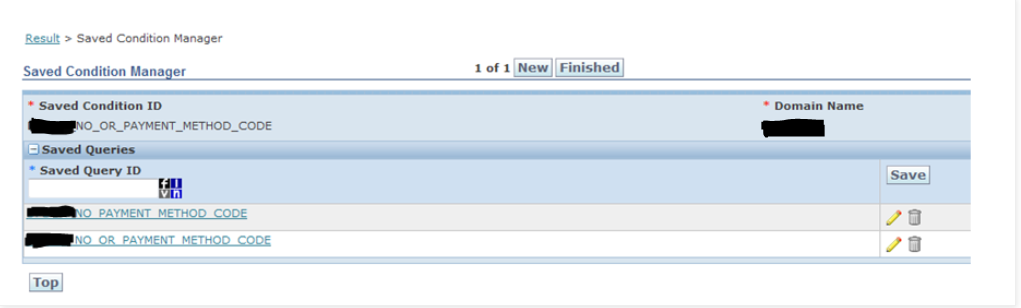
Saved Queries in OTM help to query specific records in a screen or add conditions to custom logic while creating an Agent or similar configuration. They can be reused across multiple OTM features including recurring processes and business monitors.
Beyond automation, Saved Queries power the everyday user experience: they let you build pre-filtered finder screens that surface only the records relevant to a specific role or workflow — for example, a shipment coordinator who should only see shipments in their region, or an approver who only sees invoices within their approval threshold. A well-designed set of Saved Queries is often the difference between an OTM implementation that users actually adopt and one they work around.
Invest time here before moving to Agents, Business Monitors, or any other automation topic. Every hour spent mastering Saved Queries will save you many hours of troubleshooting downstream.
Type 1: User in Finder Query
A User in Finder query is a search criteria set saved directly from a Finder screen (such as Order Release, Shipment, or Invoice). OTM stores the criteria you enter on a Finder screen and lets you replay it instantly from a dropdown — no SQL required. This is the right starting point for functional consultants who need to build pre-filtered views for end users without writing code.
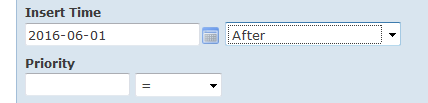
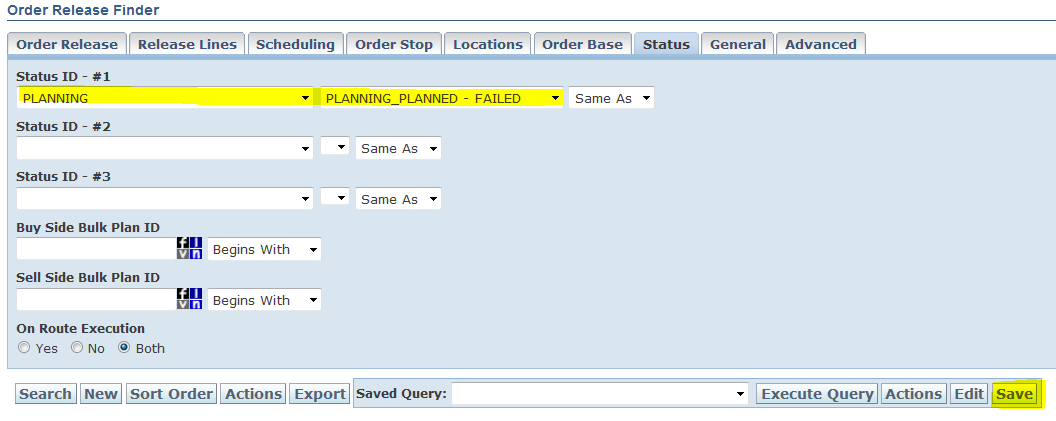
Enter your search criteria on the Finder screen:
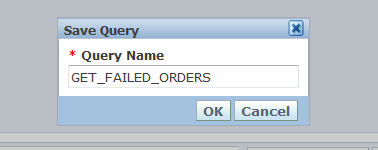
Click Save and give the query a name:
The saved query now appears in the Saved Query dropdown on the Finder screen:
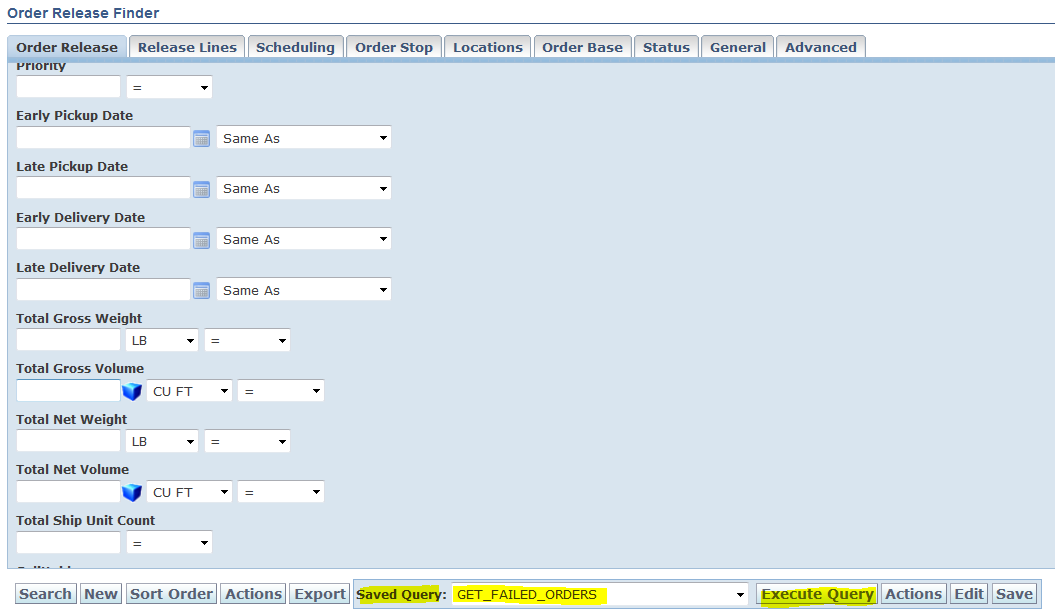
Click Execute Query to run it and see results:

The query is stored in the system and can be re-executed at any time. To inspect or edit the query definition:
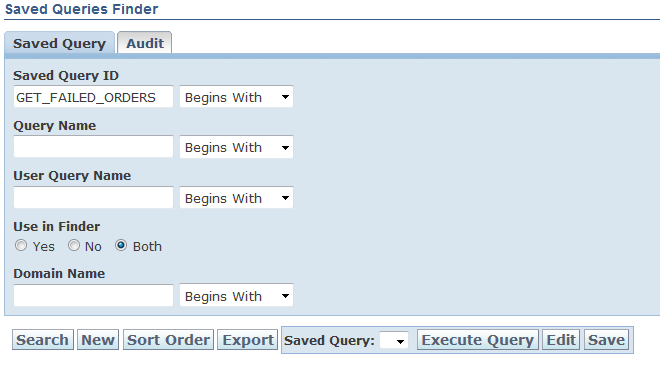
Search for the query by name, then select and edit it:
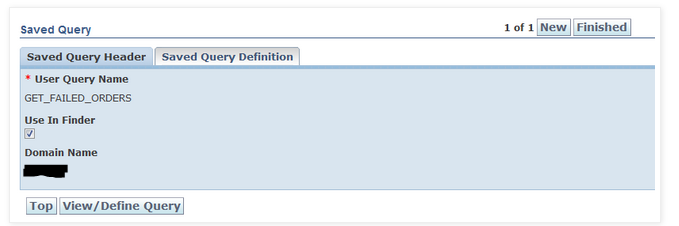
Notice that Use in Finder is checked — this flag is set automatically when a query is created from a Finder screen. It controls whether the query appears in the Finder screen dropdown.
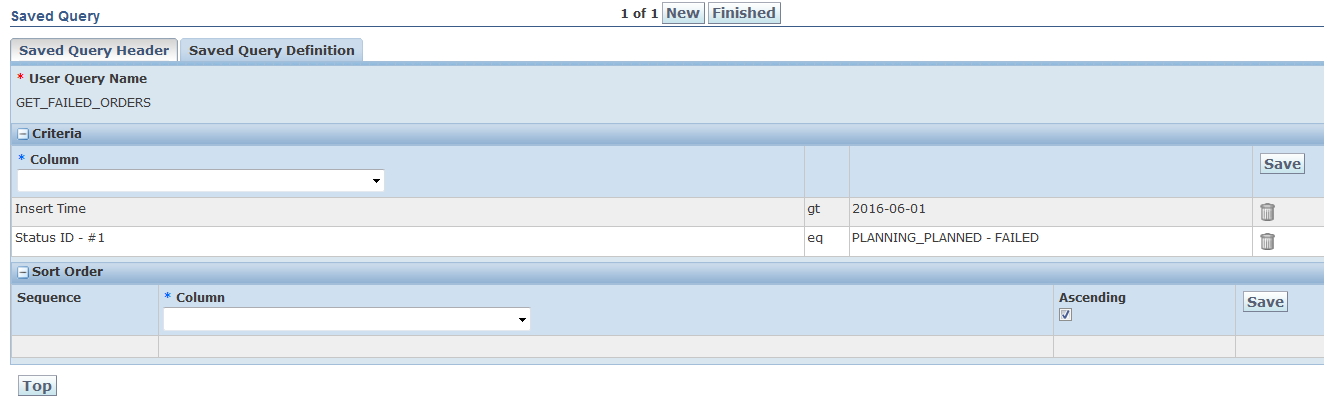
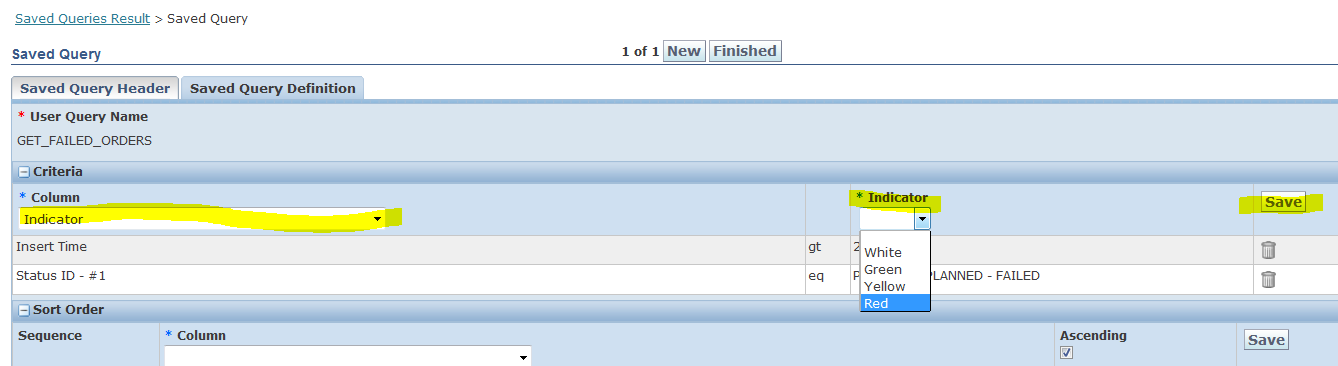
You can also add further criteria directly here — for example, adding Indicator = Red by selecting the Indicator column, choosing Red as the value, and saving:
Type 2: Saved Query (SQL-Based)
A Saved Query defined with custom SQL lets you express logic that the Finder screen criteria builder cannot — multi-table joins, aggregates, subqueries, and runtime variables. This is the primary query type used in automation: Agents, Business Monitors, Recurring Processes, and Action Checks all reference Saved Queries to identify which records to act on. The query receives the record’s primary key (GID) as a runtime variable from OTM, so it always evaluates against the specific object being processed.
Example: Check whether an Order Release has been split across multiple shipments during planning — something that cannot be expressed as Finder screen criteria:
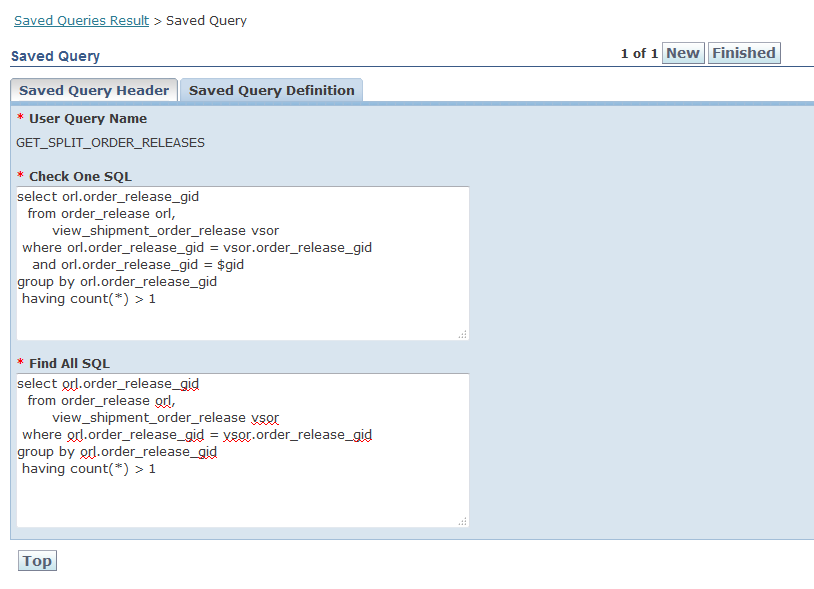
select orl.order_release_gid
from order_release orl,
view_shipment_order_release vsor
where orl.order_release_gid = vsor.order_release_gid
and orl.order_release_gid = $gid
group by orl.order_release_gid
having count(*) > 1
$gid is a runtime variable OTM substitutes with the GID of the object being evaluated — for an Order Release agent this will be the Order Release GID.
Define this in the system:
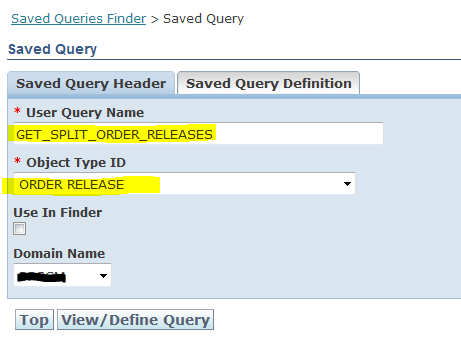
Click View/Define Query and paste the SQL (without a trailing semicolon) into both the Check one SQL and Find All SQL fields, then click Finished:
Type 3: Saved Condition
A Saved Condition is a named grouping of one or more Saved Queries that evaluates to true or false. It is the construct OTM Agents use for IF/ELSE logic — the agent’s condition step references a Saved Condition, and if all queries in that condition return at least one row, the condition is true and the agent proceeds to its action. Think of a Saved Query as a data filter and a Saved Condition as the boolean decision built on top of it.
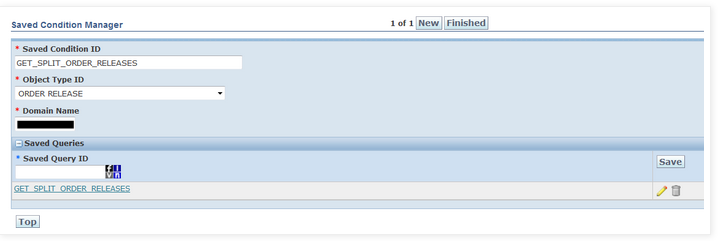
Link one or more Saved Queries to the condition. The condition evaluates to true when every associated query returns at least one record: